
Scheduling Class Reminders in Flutter Around iOS's 64-Notification Limit
Short answer
iOS keeps at most 64 pending local notifications per app and silently drops the rest. ClassPing works out every upcoming class reminder, sorts them by time and schedules only the soonest 60. It rebuilds that window every time the app opens or the user changes a setting. Each reminder gets a stable ID hashed from the class and the date, and scheduling calls run one at a time so a stale request can't undo a newer one.
ClassPing is a small Flutter app I built for MS and PhD students: pick your courses from the semester timetable (or import the department's .xlsx file) and get a reminder before each class. It is fully offline. There is no account, no server and no push service, so every reminder is a local notification scheduled on the phone.
That sounds like one loop over a list of dates. It isn't, because of one number.
The problem: a semester is more than 64 reminders
A student taking four courses that each meet twice a week for 16 weeks has 128 classes in a semester. iOS allows an app 64 pending local notifications. Schedule more and the system keeps the 64 that fire soonest and discards the rest, with no error. Android has no hard limit like this, but the same code has to be correct on both platforms.
So the app can't schedule "the semester". It has to schedule a window and keep that window topped up.
Step 1: turn the timetable into a sorted list of reminders
A pure function does the planning. It takes the chosen courses, the current time and the lead time (for example 30 minutes before class), and returns every future reminder, soonest first:
static List<ReminderOccurrence> build({
  required CourseOffering offering,
  required DateTime now,
  required Duration leadTime,
}) {
  final occurrences = <ReminderOccurrence>[];
  for (final date in offering.classDates) {
    final classStartsAt = offering.classStart(date);
    final triggerAt = classStartsAt.subtract(leadTime);
    if (triggerAt.isAfter(now)) {
      occurrences.add(ReminderOccurrence(
        notificationId: idFor(offering.id, date),
        offering: offering,
        classStartsAt: classStartsAt,
        triggerAt: triggerAt,
      ));
    }
  }
  occurrences.sort((a, b) => a.triggerAt.compareTo(b.triggerAt));
  return occurrences;
}
Keeping this separate from the notification plugin means it is easy to test: no platform channels, just dates in and reminders out. Most of the app's 40 tests sit on code like this.
Step 2: schedule only the soonest 60
// iOS keeps at most 64 pending local notifications per app.
static const int maxPending = 60;

final upcoming = occurrences.take(maxPending).toList(growable: false);
Why 60 and not 64? A few slots of headroom cost nothing and protect against an off-by-one, or a future feature that schedules its own notification. The scheduler also returns how many reminders it scheduled out of how many exist, so the UI can tell the user when the list is capped instead of hiding it.
Step 3: refill the window when the app opens
A rolling window only works if something rolls it forward. ClassPing replaces the whole schedule whenever the app comes to the foreground and whenever the student changes courses, lead time or the on/off switch. Students open a timetable app often, so in practice the window stays weeks ahead.
The trade-off is honest and worth stating: if someone never opens the app for long enough to use up 60 reminders, the reminders stop. I chose that over background fetch, which is unreliable on iOS and would add complexity to an app whose whole point is being simple and offline.
Stable IDs, so "replace" really replaces
Every notification needs an integer ID. If IDs come from a counter, the same class can end up scheduled twice under two IDs. ClassPing derives the ID from the course and the class date with a small FNV-1a hash, kept in the positive 31-bit range Android requires:
static int idFor(String offeringId, DateTime sessionDate) {
  final input = offeringId + '|' +
      sessionDate.year.toString() + '-' +
      sessionDate.month.toString() + '-' +
      sessionDate.day.toString();
  var hash = 0x811C9DC5;
  for (final unit in input.codeUnits) {
    hash ^= unit;
    hash = (hash * 0x01000193) & 0x7fffffff;
  }
  return hash == 0 ? 1 : hash;
}
The same class on the same day always gets the same ID, on every run and every device.
A serial queue against race conditions
Replacing the schedule means cancelAll() then a loop of zonedSchedule calls, and each one is an async platform call. If a student toggles two courses quickly, two replacements can overlap. The older, slower one can finish last and re-add reminders for a course that was just removed.
The fix is to chain every replacement onto the previous one:
Future<void> _queue = Future.value();

Future<ReminderScheduleResult> replaceSchedule({...}) {
  final run = _queue.then((_) => _replaceSchedule(chosen, leadTime, enabled));
  _queue = run.then<void>((_) {}, onError: (_) {});
  return run;
}
The onError on the queue matters: one failed run must not block every run after it.
Android: inexact alarms and reboots
Exact alarms are not worth it here. Since Android 14, SCHEDULE_EXACT_ALARM is denied by default for most newly installed apps, and Google Play only allows USE_EXACT_ALARM for alarm-clock and calendar apps. A reminder 30 minutes before class doesn't need to the second. ClassPing uses AndroidScheduleMode.inexactAllowWhileIdle, which still fires in Doze and needs no special permission.
Reboots clear scheduled alarms. Android forgets alarms when the phone restarts. flutter_local_notifications ships a boot receiver that re-registers them, but only if you declare it with the RECEIVE_BOOT_COMPLETED permission in the manifest. Without it, everything looks fine in testing and reminders silently stop after the first restart.
Android 13 and later also need the POST_NOTIFICATIONS runtime permission. ClassPing asks for it when the student turns reminders on, not at launch, so the request makes sense in context.
Time zones
Scheduled times go through the timezone package as TZDateTime in the device's zone. Some devices return a zone name the timezone database doesn't recognise. In that case the app falls back to Asia/Karachi, because the timetable itself is in Pakistan time. A wrong zone would shift every reminder by hours, so having a sensible fallback matters more than it looks.
What I'd tell anyone building a reminder app
- Count your reminders against 64 before you write any scheduling code.
- Keep the planning logic pure and test it without the plugin.
- Derive notification IDs from data, not counters.
- Serialise schedule replacements.
- Prefer inexact alarms unless you are actually an alarm clock, and declare the boot receiver.
- Say in the UI when the schedule is capped or depends on opening the app.
If you're planning an offline-first app like this, A Flutter App Startup That Never Waits on the Network covers the startup side of the same idea.
Share this article
You Might Also Like
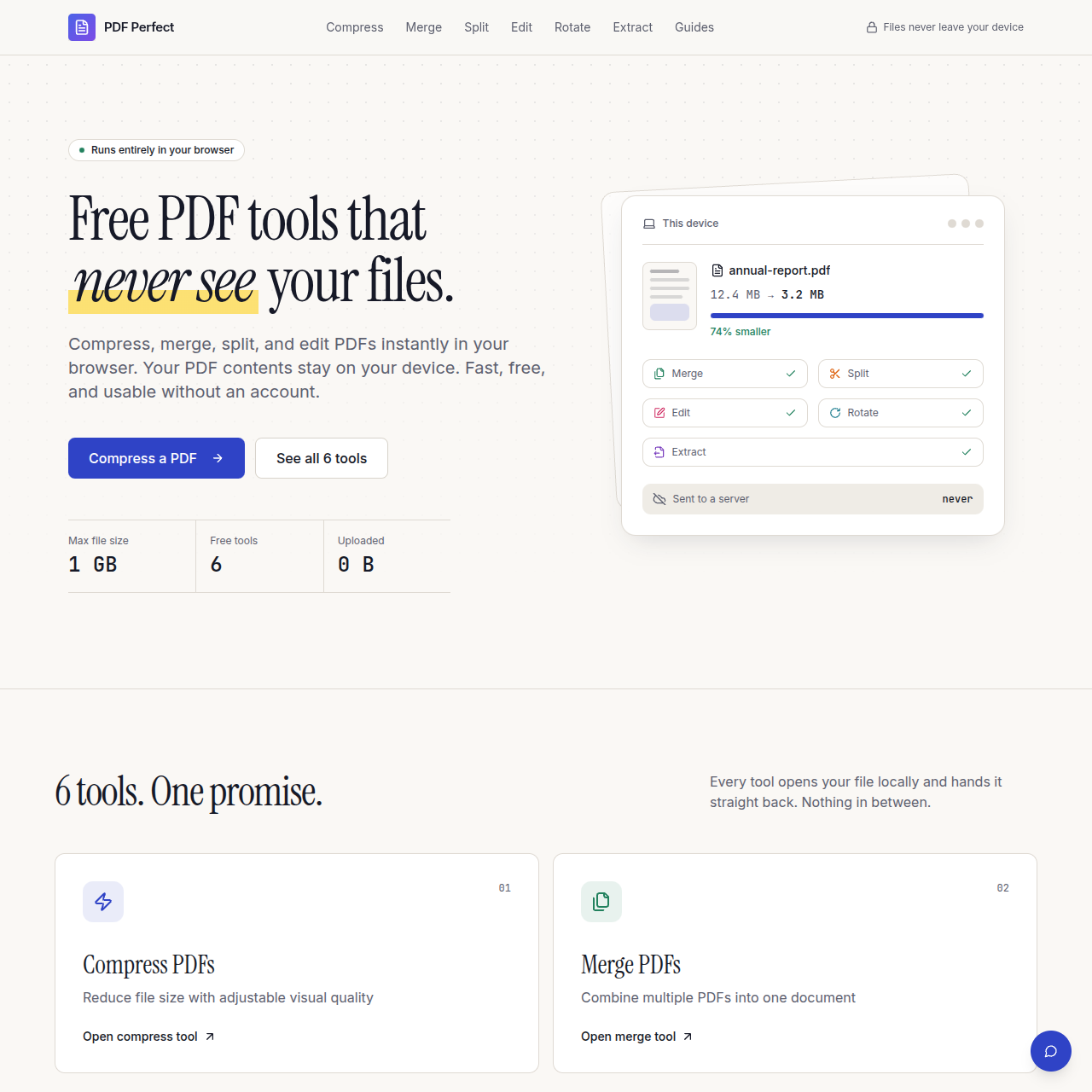
I Built PDFPerfect After Getting Tired of PDF Tools Failing Me. And I Built It in Public.
How I built a free, privacy-first PDF tool that lets you merge, compress, and split PDFs client-side. Learn about building in public, PDF optimization without data uploads, and creating developer tools that prioritize user privacy.
Read More →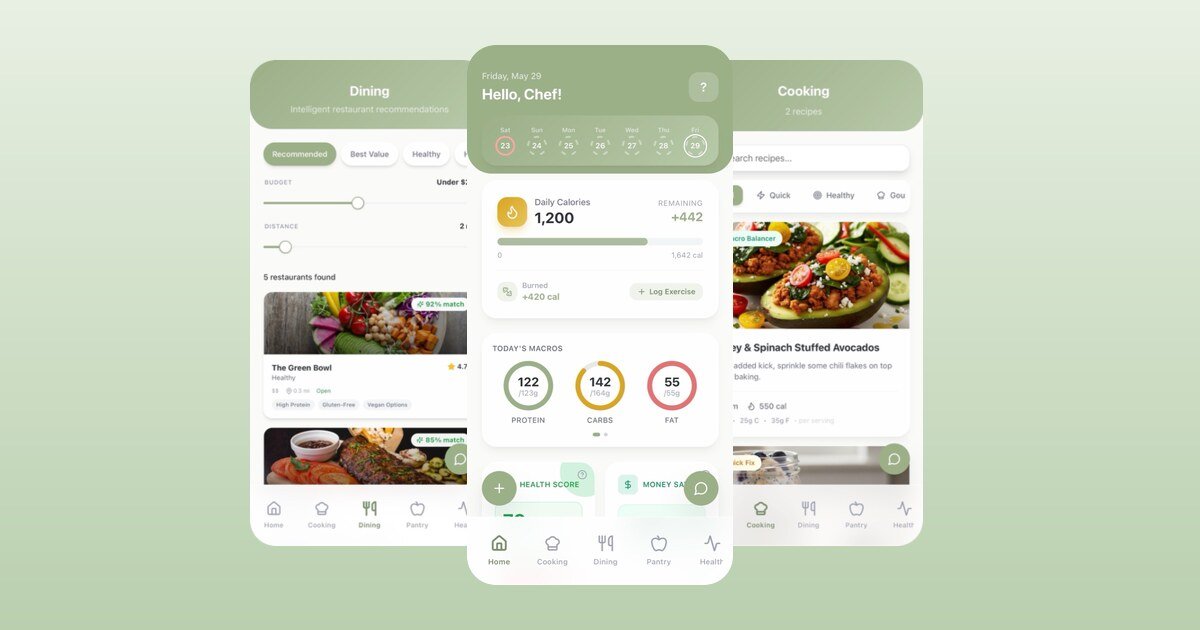
Opt-In Analytics and Crashlytics in Flutter: Consent Done Properly
How I made Firebase Analytics and Crashlytics opt-in in Eats AI: collection off at startup, one ConsentService that applies and persists the choice, separate health-data consent, an audit record, and the native flags that close the gap before Dart runs.
Read More →
User-Centered Development Practices
User-centered development from planning to deployment: UI/UX design best practices, accessible design practices and agile software development that keep users at the center of every release.
Read More →